
Watch Any Stream
In Your Language
Install the Chrome extension, pick your language, and start watching with real-time AI dubbing and subtitles.
Install the Extension
Available on the Chrome Web Store
Get Started
Install the Extension
Add StreamFluent to Chrome in one click from the Chrome Web Store. Works on any Chromium-based browser (Chrome, Edge, Brave, Arc).
- 1.Go to the StreamFluent Viewer page on the Chrome Web Store
- 2.Click Add to Chrome and confirm the installation
- 3.The StreamFluent icon appears in your browser toolbar — pin it for easy access
Authentication
Log In
Click the StreamFluent icon in your toolbar and log in with your account. No API keys needed.
- 1.Open any tab with audio — a live stream, a video, Netflix, or any other site
- 2.Click the StreamFluent icon in your browser toolbar
- 3.Log in with Google, Twitch, Kick, or your email — same account you use on streamfluent.ai
Configure
Pick Languages & Voice
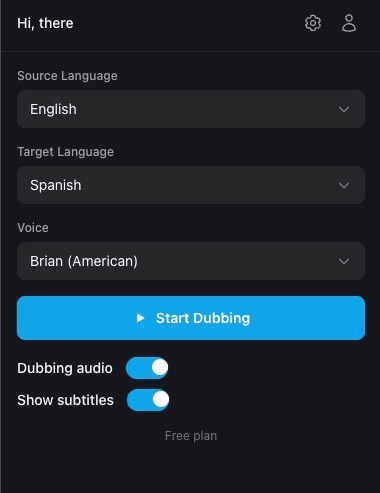
Select what the streamer is speaking and what language you want to hear. Pick a voice and you're ready.
- 1Set the Source Language — the language the streamer is speaking
- 2Set the Target Language — the language you want to hear
- 3Choose a Voice for the dubbed audio from the dropdown
Go
Start Dubbing
Hit the button and the stream audio is dubbed in real time. Toggle dubbing and subtitles independently.
- 1Click the Start Dubbing button — the extension begins processing audio immediately
- 2Use the Dubbing audio toggle to turn dubbed playback on or off
- 3Use the Show subtitles toggle to show or hide translated captions overlaid on the video
Customize
Settings
Click the gear icon in the extension popup to access audio, language, and caption settings.
Audio
Control the balance between the original stream audio and the dubbed audio. Lower the original to hear the AI voice more clearly, or keep both at similar levels for a natural mix.
Language
Set default source and target languages so you don't have to pick them every time. These can always be overridden from the main popup.
Captions
Customize how subtitles appear on the video. All styles are applied in real time.
Subtitle Language
Choose whether to display subtitles in the translated language, the original language, or both side by side.
Compatibility
Supported Platforms
The extension works on all major live streaming platforms.
Help
Troubleshooting
Extension icon is grayed out
Make sure you're on a tab with a loaded page. Try refreshing the page, then click the icon again. If the issue persists, remove and re-add the extension.
No dubbed audio after clicking Start Dubbing
Make sure the stream is live and playing audio. Check that your source and target languages are set correctly. If the streamer isn't speaking, there's nothing to dub yet.
Subtitles aren't showing on the video
Make sure the "Show subtitles" toggle is enabled in the extension popup. If subtitles are off-screen, use "Reset position" in the caption settings.
Audio sounds delayed
AI dubbing has a small inherent latency (typically under 1 second). This is normal and expected for real-time translation.
Extension asks me to log in again
Your session may have expired. Log in again from the extension popup. If the issue persists, try removing and re-adding the extension.
Watch streams in your language
Install the Chrome extension and start watching any live stream with real-time AI dubbing and subtitles.